
Email Settings lets you create new tasks in a DoneDone project simply by sending an email. Each project can generate unique DoneDone email addresses. Any email sent or auto-forwarded to one of these addresses automatically creates a new task in that project. This is especially useful when you want tasks automated, without having to create each task manually.
Find Your Project’s Email Address #
To set up Project Email:
- Open the Project you want emails to create tasks in.
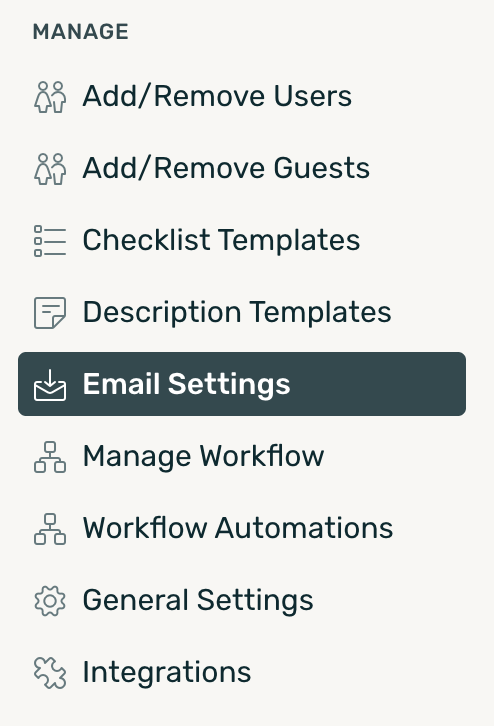
- Go to Manage →Email Settings.
- Under Email Settings, you’ll see the generated email addresses for the project or a prompt to Add your first!
- Click an address to copy it to your clipboard.
You can now send an email to that address or use it as the forwarding destination from another email account.
Important: Treat these generated addresses as private. Anyone who can send email to the address can create tasks in your project. If an address has been compromised, remove it and generate a new one.
What Happens When an Email Is Forwarded? #
When an email is sent or auto-forwarded to one of the project’s generated addresses, DoneDone creates a new task in that project.
This gives your team a simple way to turn incoming emails into trackable work that can move through your project’s existing workflow.
For example, you could forward:
- Internal requests from a shared email address
- Work orders or service requests
- Automated alerts that require follow-up
- Requests submitted through another system
- Emails from a specific team or department
Instead of leaving those requests buried in an inbox, each one becomes a task your team can assign, prioritize, and track in DoneDone.
Turn Form Submissions Into Tasks #
Project Emails can also help turn form submissions into trackable work in DoneDone. If your website form, Google Form workflow, or another form tool can send or forward submission details by email, you can route those emails to a DoneDone project address.
Each submission creates a new task in the project, giving your team a simple way to assign, prioritize, and track requests without manually copying information from a form into DoneDone.
This can be useful for workflows like:
- Website contact and request forms
- Internal IT or support requests
- Work order and maintenance forms
- Employee requests
- Client intake forms
- Google Forms used to collect requests
Set Default Task Rules #
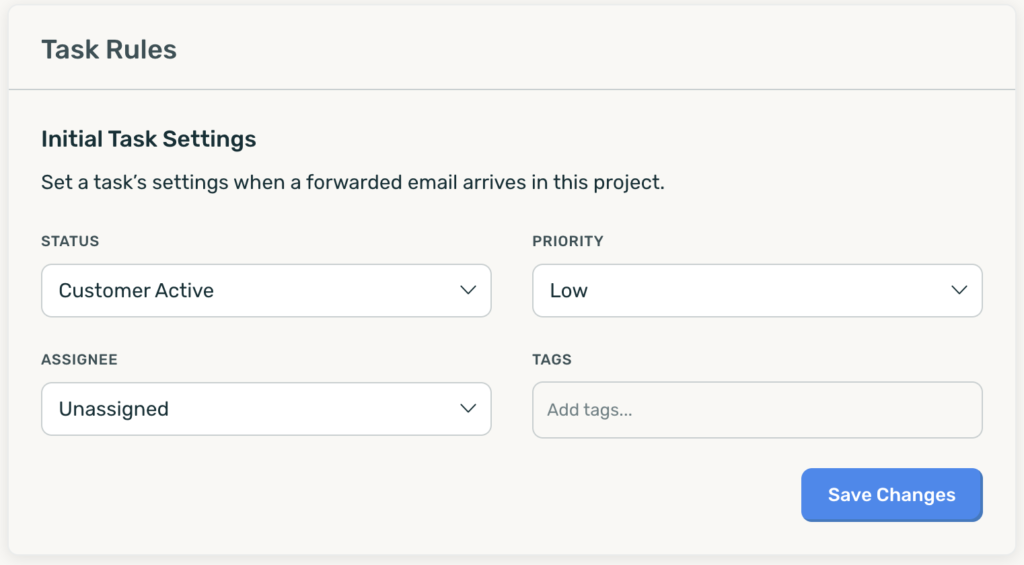
You can also control how tasks created through Email Settings are initially configured.
Under Task Rules, choose the default:
- Status
- Priority
- Assignee
- Tags
For example, you might configure forwarded work orders to automatically receive a New Order tag, be assigned to the person responsible for processing them, and start in the appropriate workflow status.
Once you’ve configured your defaults, click Save Changes.
These settings apply automatically whenever a new task is created through one of the project’s Email addresses.
Create Additional Email Addresses #
You can generate multiple Email addresses for the same project by clicking the + button next to Email Addresses.
Having multiple addresses can be helpful when different systems or forwarding rules need their own unique destination.
If you no longer need an address or believe it may have been shared unintentionally you can remove it and generate a new one.
Using Project Email with Your Email Provider #
You don’t have to manually send emails to the generated address.
Most email providers let you create forwarding rules that automatically send certain incoming messages to another email address. Simply use the DoneDone-generated address as the destination.
For example, you could create a rule that automatically forwards messages sent to workorders@yourcompany.com into your Work Orders project.
From there, DoneDone turns each forwarded email into a task and applies the default Task Rules you’ve configured.
That’s it! Once your forwarding rule is active, incoming emails can flow directly into your project as trackable tasks.


