
When conversations and tasks relate to one another, go ahead and link them! This creates a more closed-loop experience and allows you to see everything relevant to your work.
How to Link Tasks to Conversations #
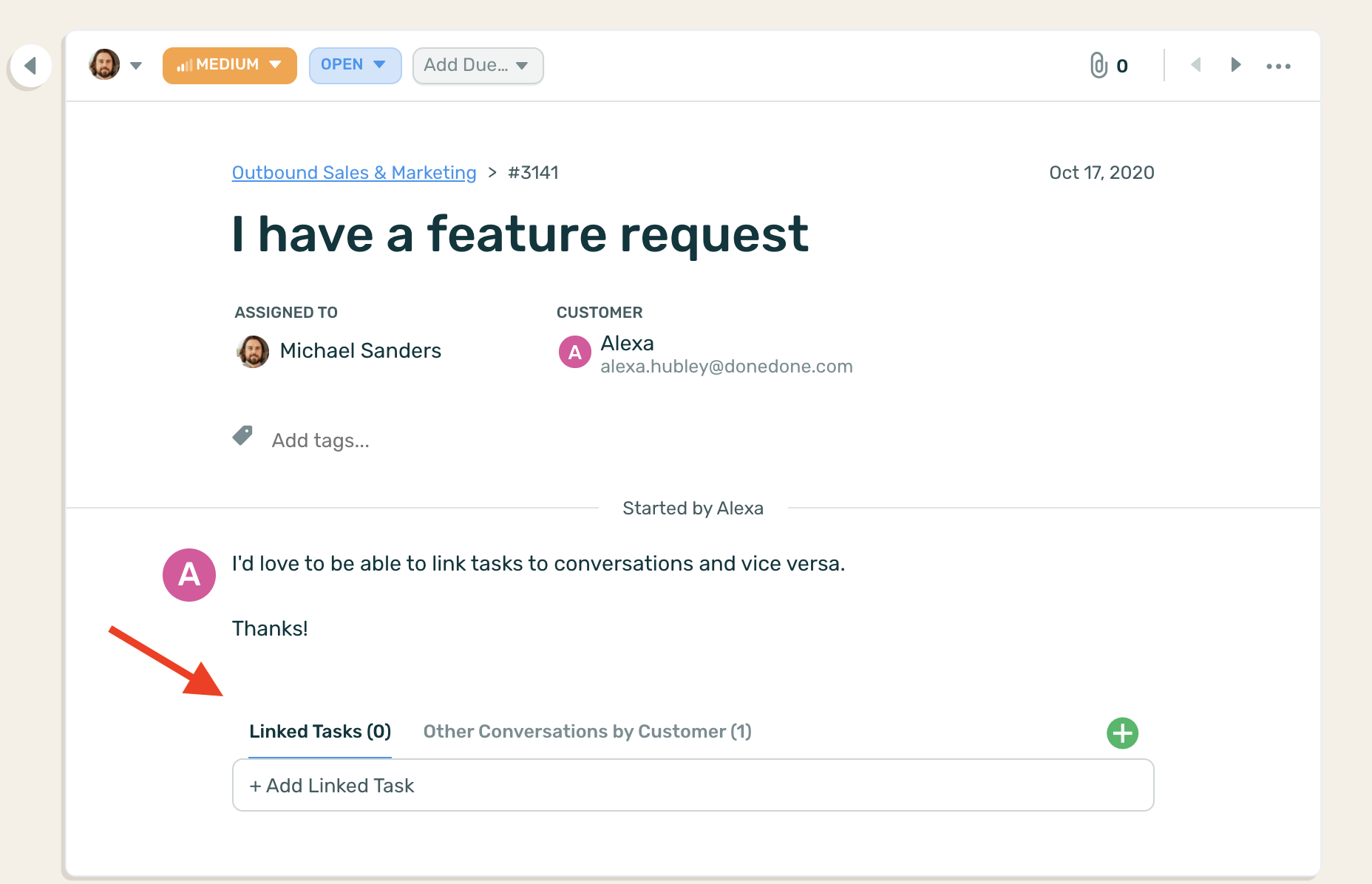
Navigate and select the Conversation. Underneath the Conversation message, click the green + button next to Linked Tasks.
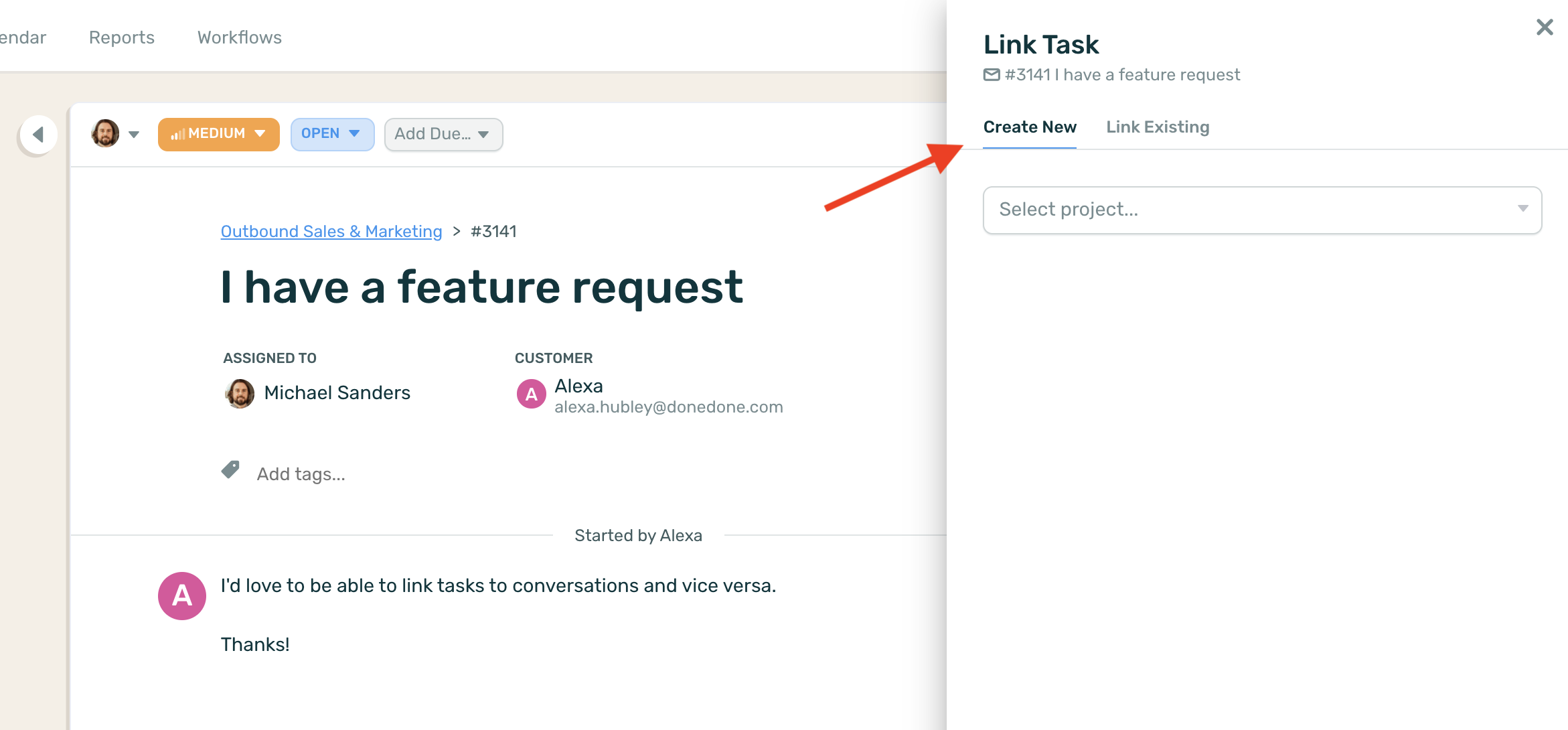
Next, select Create New if you’d like to create a new task, or Link Existing if you’d like to link a task that’s already in DoneDone.
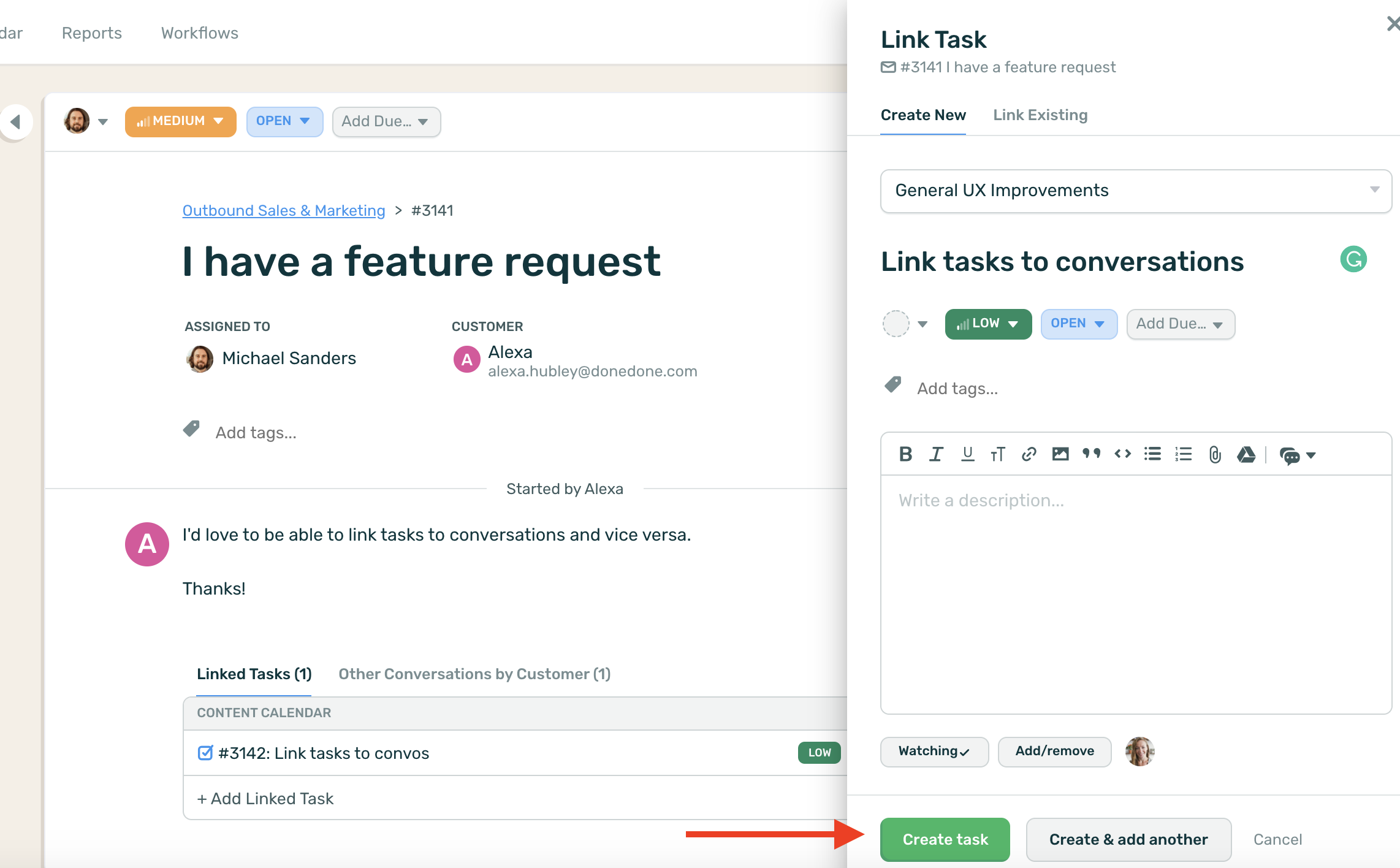
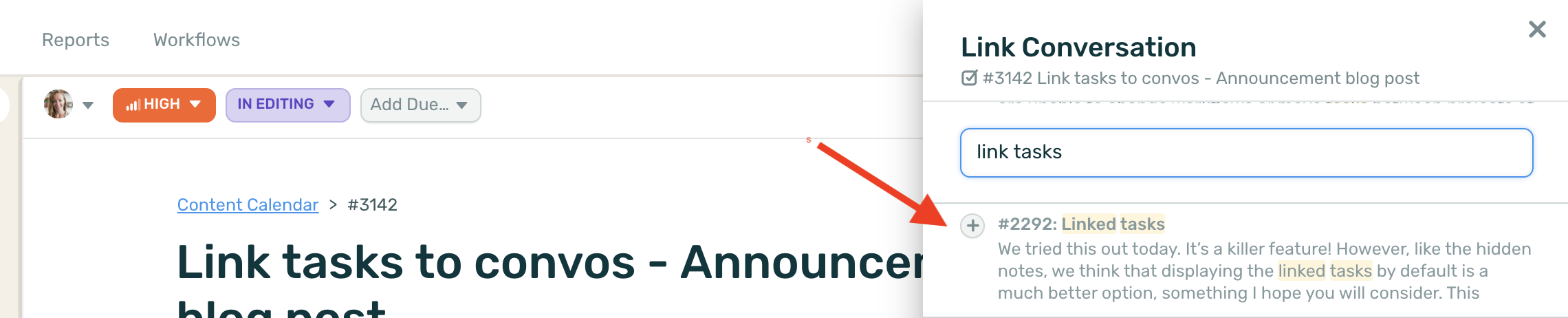
If you’re creating a new task, select the project and start writing the details of the new task and hit “Create Task”. If you’re linking an existing task, search for it and hit the “+” button next to the title to link it.
You can also link tasks to another task by following the same steps above.
How to Link Conversations to Tasks #
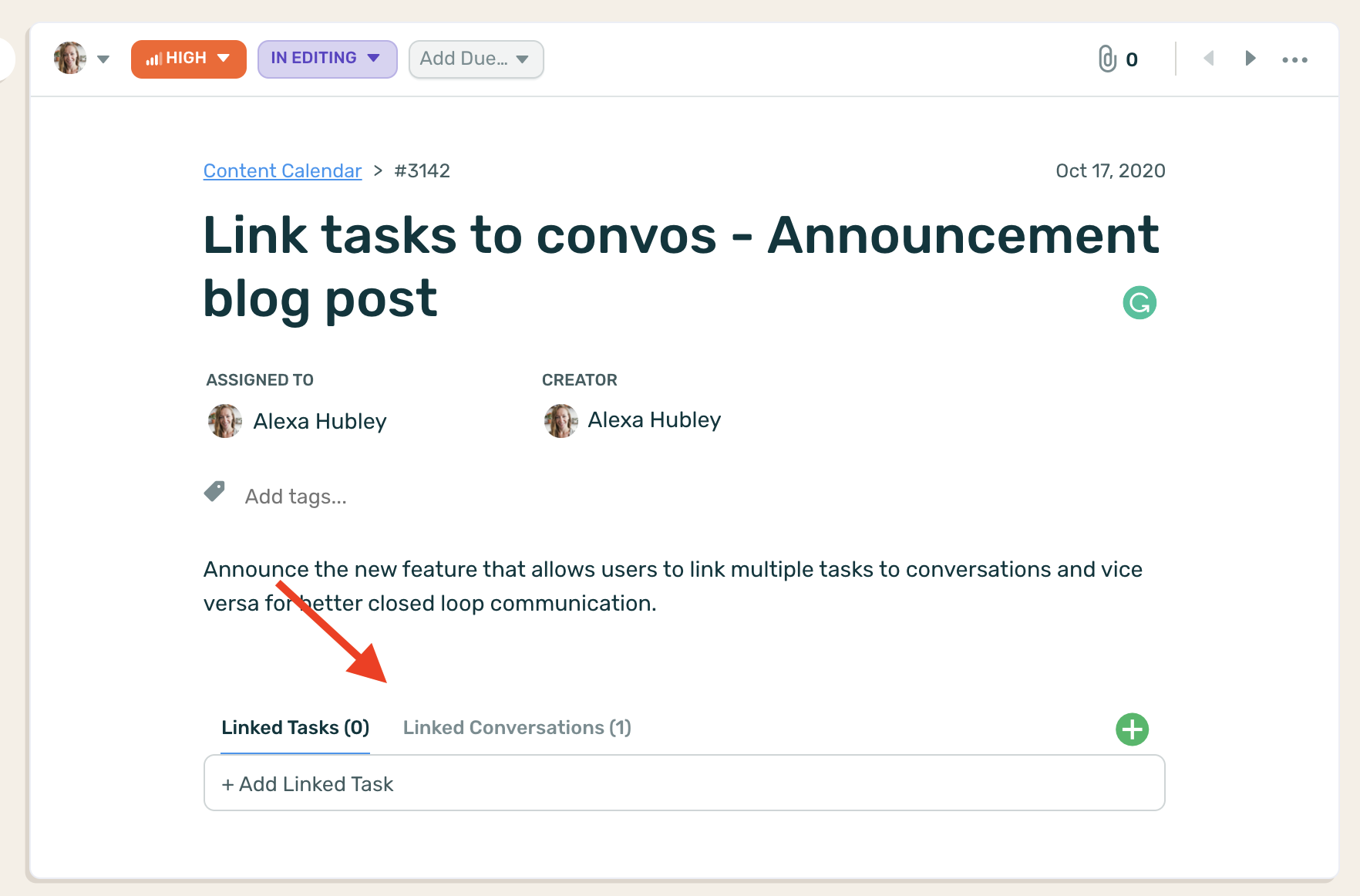
Navigate and select the Task. Underneath the Task description, click the green + button next to Linked Conversations.
Search for the Conversation you’d like to link.
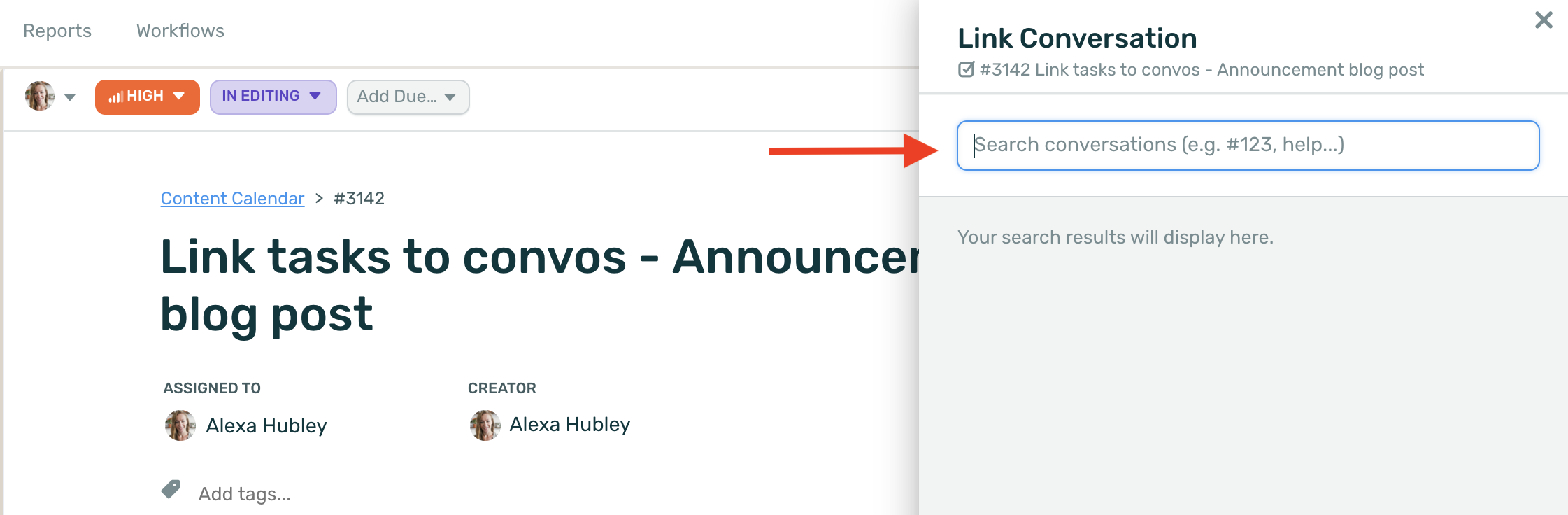
Select the + sign to link it to the Task and you’re done!
How to Remove a Linked Task or Conversation #
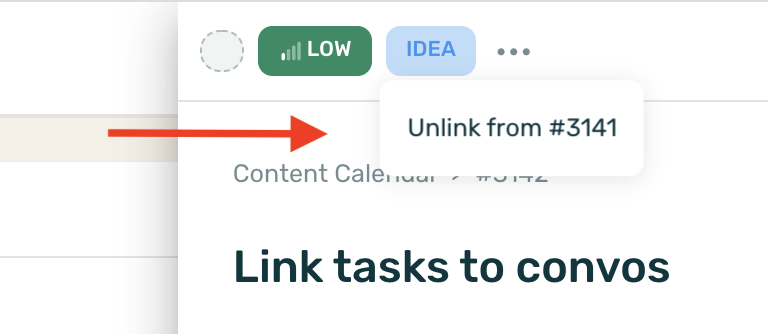
Simply select the linked Task or Conversation. From the more dropdown menu, select “Unlink from #XXXX” and you’re done!
You can also link one or multiple tasks or conversations and vice versa all at the same time, it’s your choice!
See Linked Tasks in Action #
Check out this video to see how you can create linked tasks out of your replies, comments, and convos!


