
DoneDone makes it easy to set up your inbox. With Direct Connection, you can securely connect your email inbox in just a few clicks, without manually configuring IMAP, SMTP, or forwarding rules.
Once connected, DoneDone can sync incoming messages, create conversations, and send replies directly from your connected mailbox.
What is Direct Connection? #
Direct Connection links your mailbox directly to DoneDone so your team can:
- Manage incoming emails inside DoneDone
- Convert emails into tickets and tasks
- Reply to customers directly from DoneDone
- Keep conversations synced with your mailbox
- Reduce setup time compared to forwarding or manual email configuration
This helps centralize incoming requests while keeping your existing email workflow intact.
How to Connect Your Inbox #
Step 1: Open Mailbox Settings #
Navigate to:
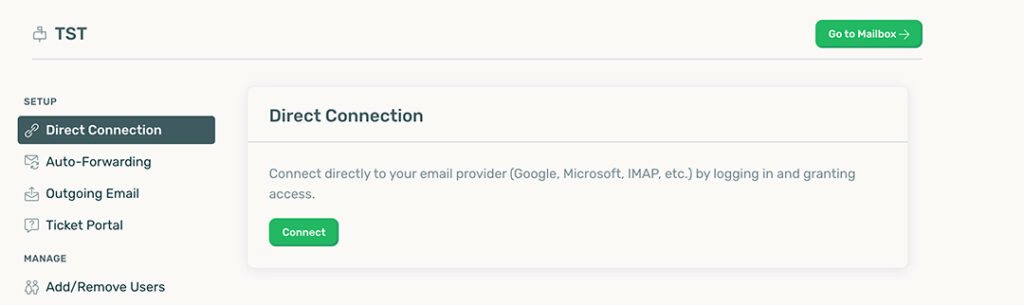
Settings → Direct Connection
You’ll see the Direct Connection setup page.
Step 2: Click Connect #
Click the Connect button.
This will open the secure mailbox connection window.
Step 3: Choose Your Email Provider #
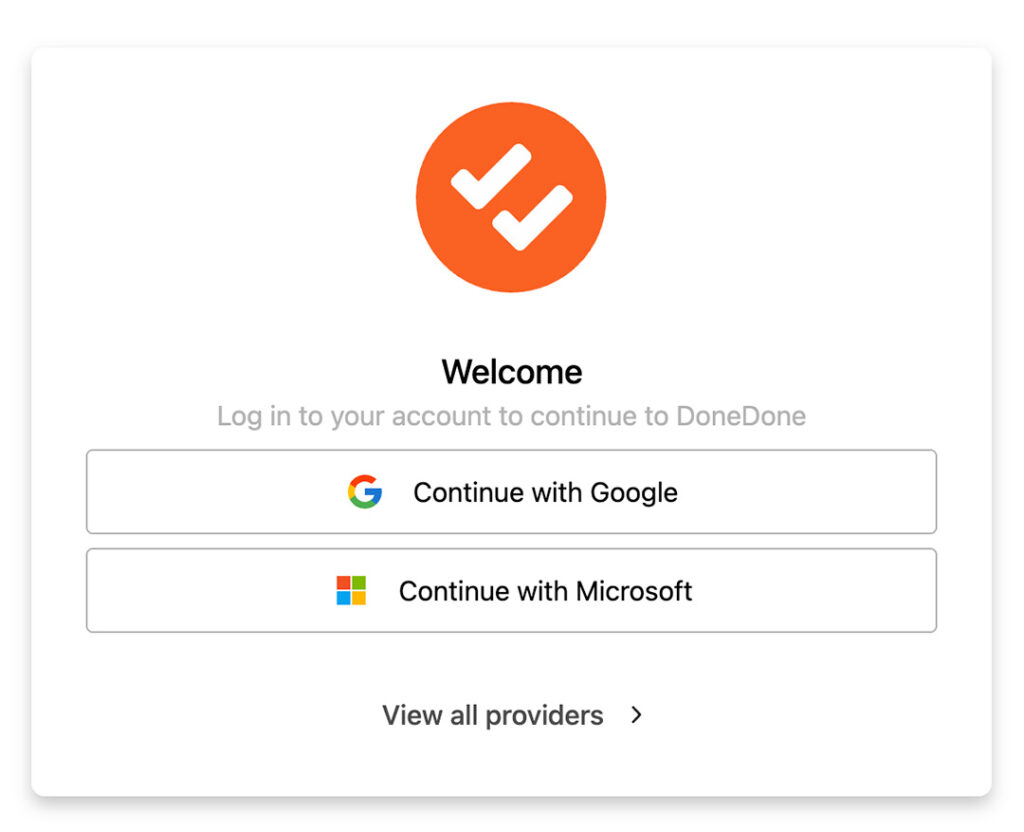
Select your email provider.
For most users, this will be:
- Microsoft
Or click View all providers to see additional options.
Step 4: Sign In and Grant Access #
Log in to your email account and approve access.
DoneDone needs permission to:
- Read incoming emails
- Send replies
- Sync conversations
This allows DoneDone to keep your mailbox and conversations updated automatically.
Need Help? #
If you’re having trouble connecting your inbox, contact your DoneDone administrator or reach out to our support team.


